Updated 2/6/2026
Education User Manual/Camera Setings
Cameras(1)
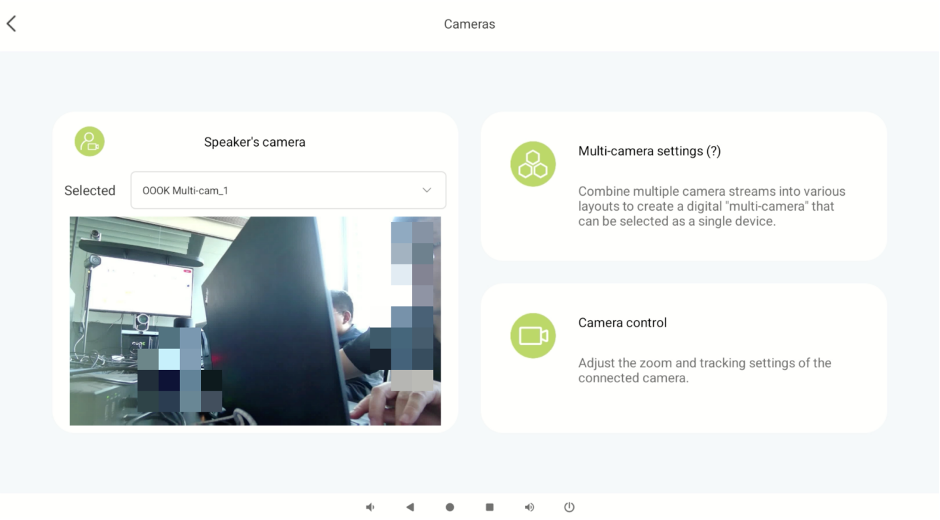
In [Cameras], you can adjust various settings related to the camera, such as [Speaker’s Camera] settings to the left, [Multi-Camera Settings] on the upper right, or [Camera Control] in the lower right.
Speaker`s Camera(2)
“Speaker`s Camera” refers to the camera of the main speaker. You can select any camera that is successfully connected to the AI UniBox as the main speaker’s camera. Alternatively, you can select “Multi-Camera” as the Speaker Camera.
Multi-Camera Settings(3)
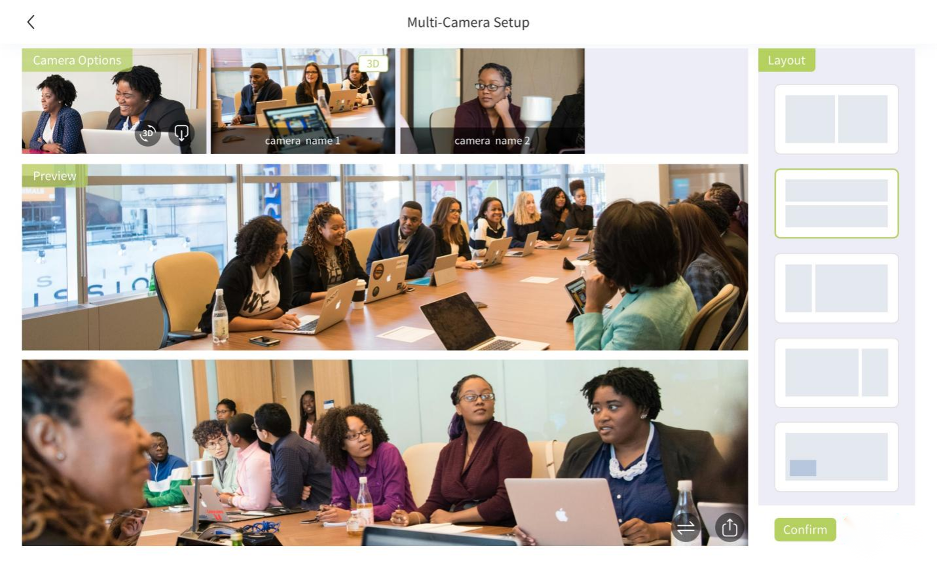
"Multi-Camera Setting" is a special feature of the HybriU Conference. It refers to the function of combining multiple connected cameras into a singular virtual camera, through a certain layout and arrangement. This virtual camera can be selected as the speaker’s camera, or it can be used as the main venue’s secondary camera in Discussion Mode. This function will be introduced later.
Camera Control(4)
Currently, this function is only available for POE cameras. Cameras by other brands, whether USB or POE-connected, are not supported for the time being.
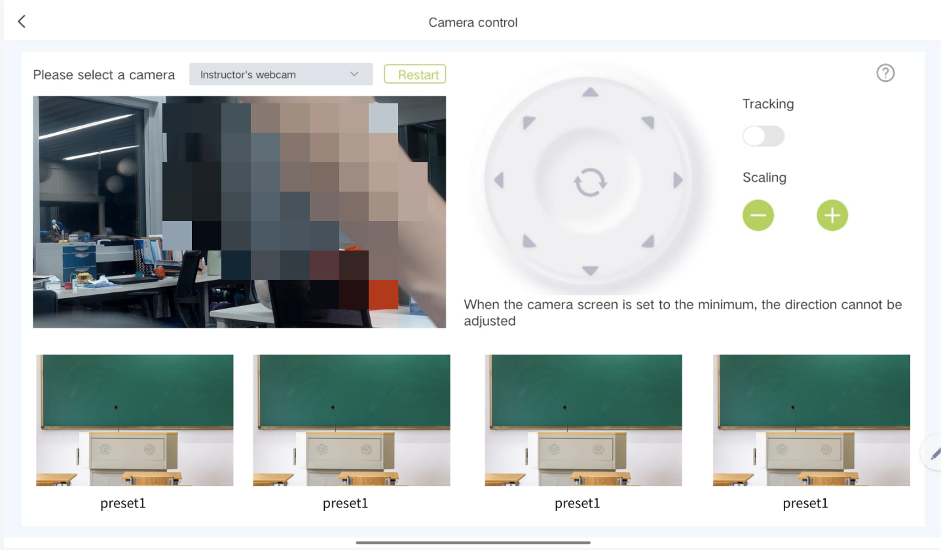
You can customize the zoom and angle of POE cameras. If you are using an HybriU PTZ camera, in addition to the above functions, you will be able to control the PTZ position. This is shown in the figure below:
A few points to note:
1. You will need to turn off the tracking function before adjusting the camera's angle.
2. If the camera has been fully zoomed out, you will not be able to adjust its angle.