Updated 2/6/2026
Education User Manual/Starting an Online Session
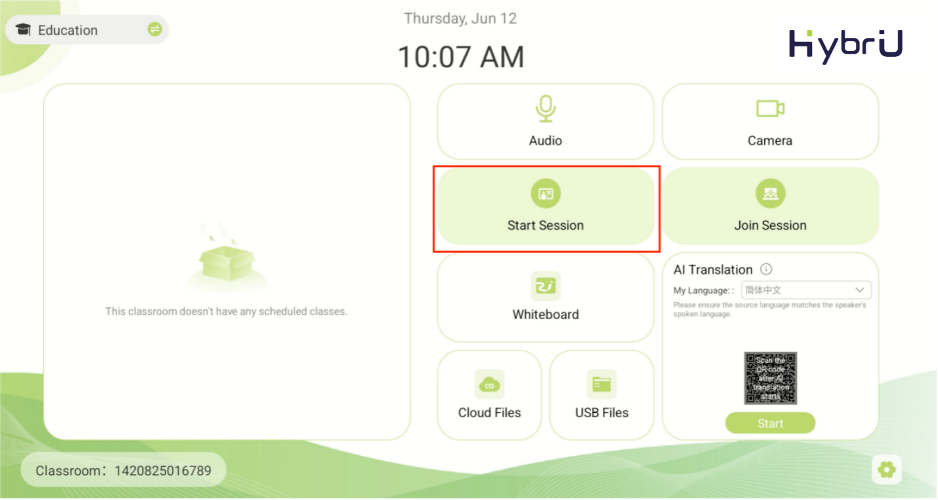
Turn on the Control Panel and go to the homepage. On the left, you will see a list of scheduled sessions; select the “Start Session” button next to any title to begin that session.
Tip: If you do not see your scheduled session on the homepage, try clicking the “View More” button or pull to refresh.
If you have not scheduled a session in advance, you can also click "Start session" to create a new one.
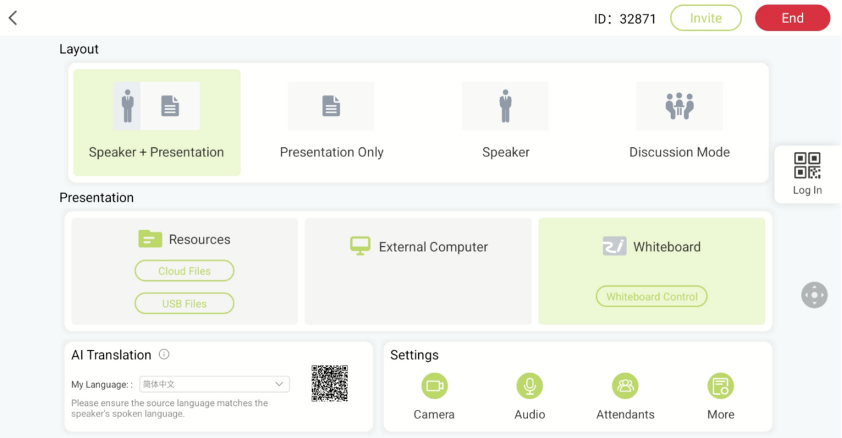
Once you have clicked “Start session” or have entered a online session, you will be taken to the session control page, as shown below:
Switching Layouts(1)
Layout 1: Speaker + Presentation
This layout is used in scenarios where the speaker and their teaching materials (such as a slideshow, demonstration, or visual) benefit from being displayed at the same time. Online participants will be able to see the lecture and teaching content side-by-side. The effect is as follows:
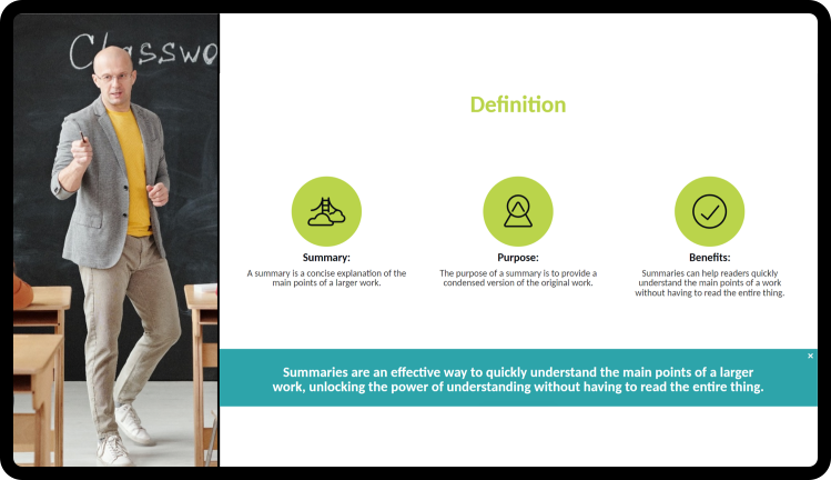
At the speaker’s venue, the screen will only display the presentation content. The effect is as follows:
Layout 2: Presentation Only
This layout is suitable for scenarios where participants only need to see the teaching material, in addition to supporting formats such as the digital whiteboard, external computer screen projections, and 3D camera footage (Note: 3D function is only available to users who have enabled the function’s permissions).
If you would like to use the whiteboard, click "Whiteboard" from the session control page at any time. The whiteboard tool supports writing, drawing, and annotating, as well as various file types such as Word, PPT, PDF, images, video, and audio.
If you would like to upload the file directly, click "Resources".
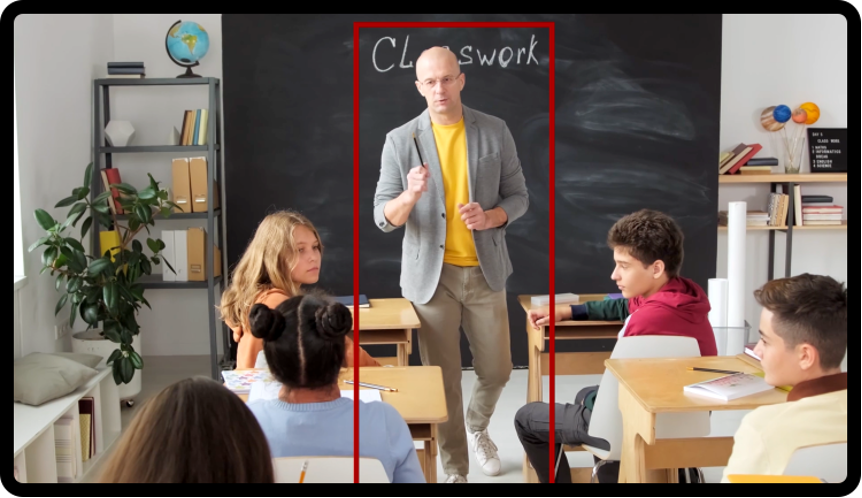
Layout 3: Speaker
This layout is suitable for scenarios where you only need to display the speaker to participants. The effect is as follows:
Layout 4: Discussion Mode
This layout is suitable for facilitating discussions between multiple participants.
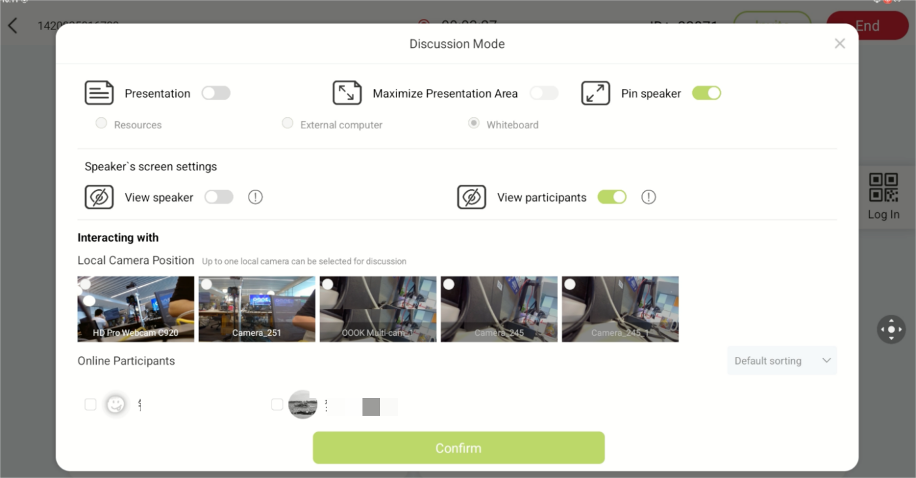
While in Discussion Mode, you can continue to present content by enabling the presentation setting, then selecting your format: an external device, cloud file, or digital whiteboard. You can also set a presentation layout for your participants to adhere to.
If [Maximize Presentation Content] is enabled, all participants will be positioned on the right side of the presentation screen. Otherwise, participants will be distributed on both sides.
If [Pin Presenter] is enabled, the presenter’s screen will take up a larger portion of the display compared to other participants. Otherwise, the presenter and participants will share the same proportions.
You also set the speaker or participants’ video feeds to be displayed on the large screen. Please note that this setting only affects the presenter’s screen, and has no impact on online participants.
During the discussion, camera footage of the speaker (at the main venue) will be displayed together with the selected participants. You can also include footage from a second camera through the multi-camera function; this will allow you to concurrently capture different areas and angles of the main venue.
Discussion Mode also supports audio and video interaction with online participants.
Settings for the above are as follows:
Switching Presentation Content(2)
Resources
In the Resource Center, you can access both [Cloud Files] and [USB Files]. After clicking [Cloud Files], you will need to use the OOOK LIVE app to scan the QR code and log in. This will allow you to access both the personal resources associated with your account and the corporate files of the company to which your UniBox belongs.
Click [USB Files] to access files stored on the USB drive inserted into the control panel. Please note that selected files will need to be uploaded and parsed before they can be used.
External Computer
If you have connected your computer to the HybriU UniBox via an HDMI cable, you will be able to switch the presentation content to "External Computer”. This will directly project your computer’s screen onto the display. You can also switch to “3D Mode” to play 3D content from your computer (Note: 3D function is only available to users who have enabled the function’s permissions).
Whiteboard
The whiteboard supports writing, drawing, and annotating. You can add, delete, and move through different pages as needed, as well as upload files such as slideshows, PDFs, images, videos, and more.
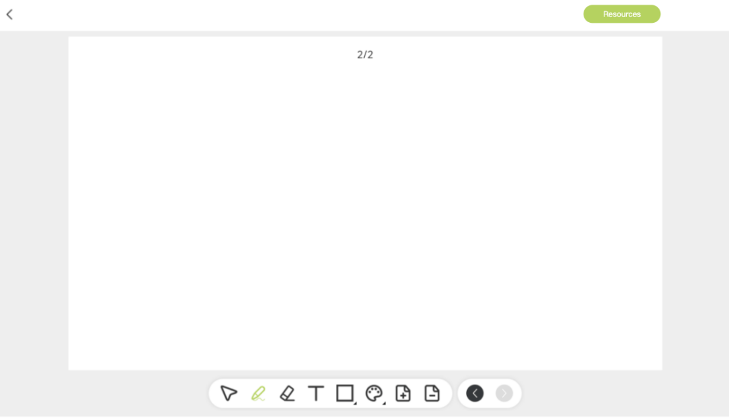
Clicking "Resources" will require scanning a QR code to log in. Before doing so, you will need to download the “OOOK LIVE” app on your phone. To verify your identity, ensure that the account you have logged into is an employee of the company. Otherwise, you will be prompted to receive permission first.
After successfully scanning the code and logging in, you will be able to access both the company's shared resources and your own personal files through the Resource Center.
3D Camera
If you have enabled the 3D function and purchased a 3D camera, you can select the 3D camera for use in the presentation content area.
AI Translation(3)
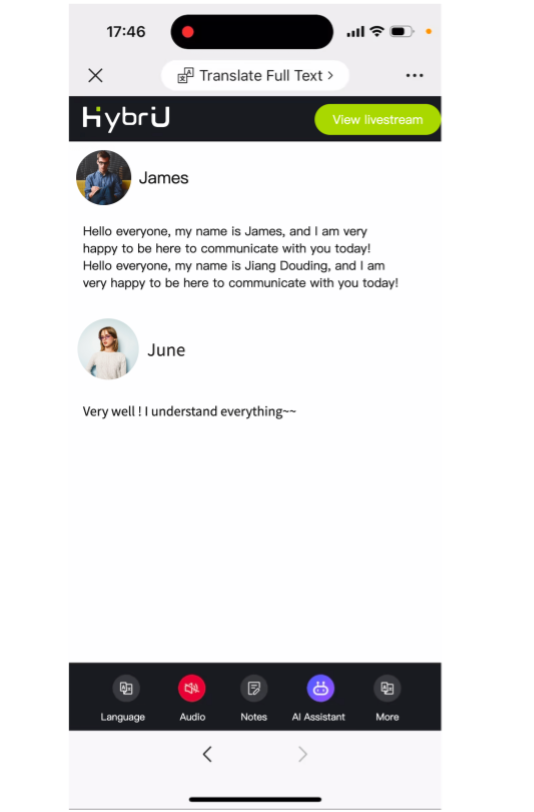
Scan the QR code at the AI Translation to access the AI translation assistant page, where you can watch subtitles and simultaneous interpretation in dozens of languages.