Updated 2/6/2026
Education User Manual/Screen Settings
Main Screen Settings (1)
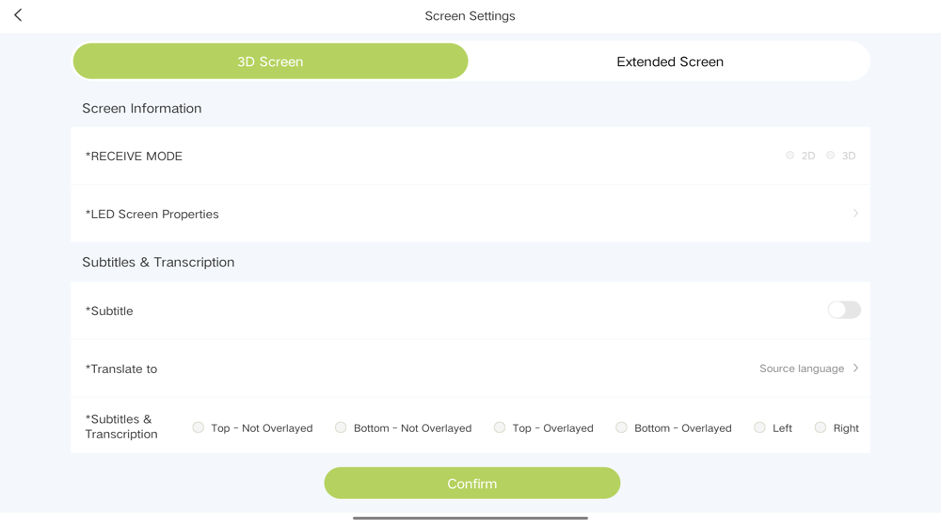
The“main screen”is used to display content such as the whiteboard, computer screen, files from the personal library or enterprise library and subtitles. It can be 2D or 3D.
The position, size, color, and background of the subtitles can be customized. It can be 2D or 3D.
These settings are shown in the figure below:
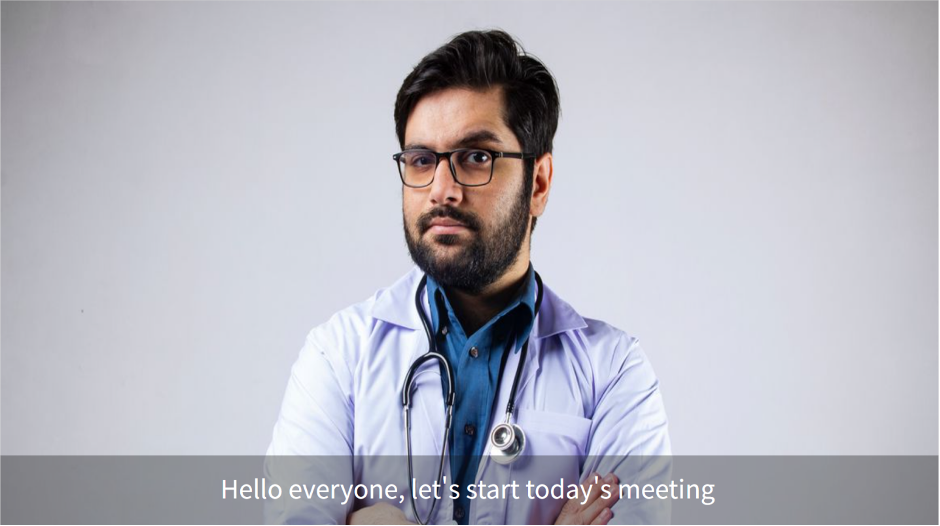
The effect on the screen is as follows:
Secondary Screen Settings(2)
Currently, the tablet only displays some information from the extended screen, and cannot be modified.
Overhead Screen Settings (3)
The "Overhead Screen" can be customized for many different uses, such as helping the speaker engage with online participants, view speaker notes, or quickly access meeting information.
Click "Overhead Screen" to select the type of content presented on the overhead screen display:
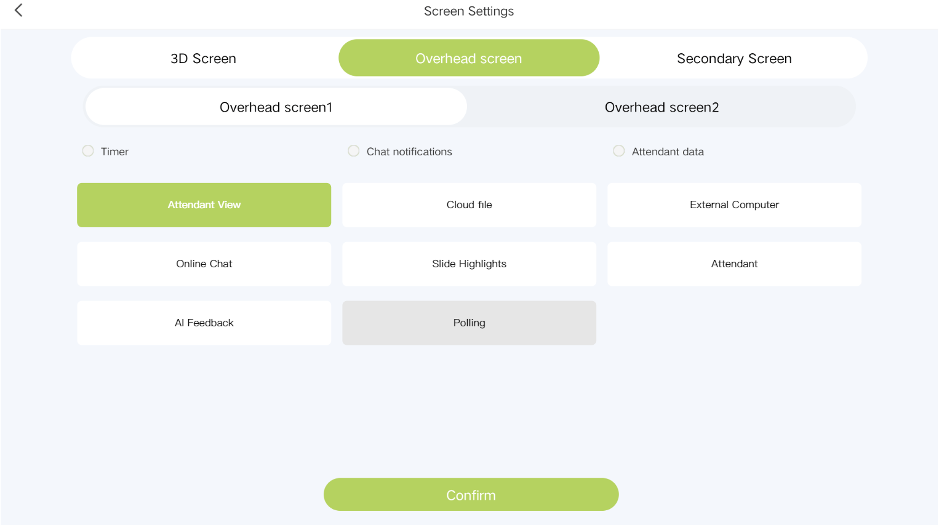
The Overhead Screen has three small, add-on modules: Timer, Chat notifications, and Attendant data, as well as the following large screen functions to choose from:
1. Attendant View: View the meeting and any recorded screens as seen by online participants through the heads-up display.
2. Cloud Files: When the presenter uploads a file, they may also project it onto the heads-up display for easier viewing.
3. External Computer: After connecting an external computer via an HDMI cable, the presenter will be able to view its screen through the heads-up display.
4. Online Chat: Easily view, monitor, and interact with students in the chat.
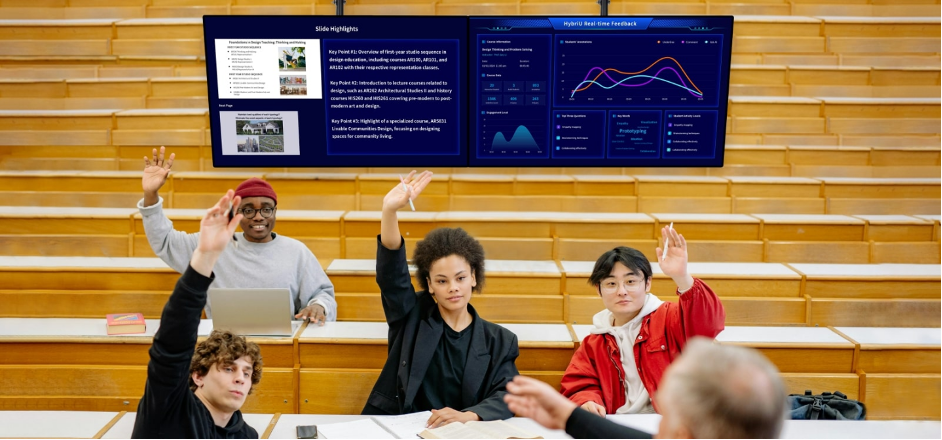
5. Slide Highlights: The presenter can use HybriU AI to generate notes from their documents in advance, and display them as a presentation assistant.
6. Attendant: The videos of online participants can be shown on heads-up displays to better facilitate interactions and help the presenter gauge their status.
7. AI Feedback: AI can collect, summarize, and update data about participants in real time, such as attendance and activity records.
The AI Document Annotation and AI Feedback features are presented as follows:
Extended Screen Settings(4)
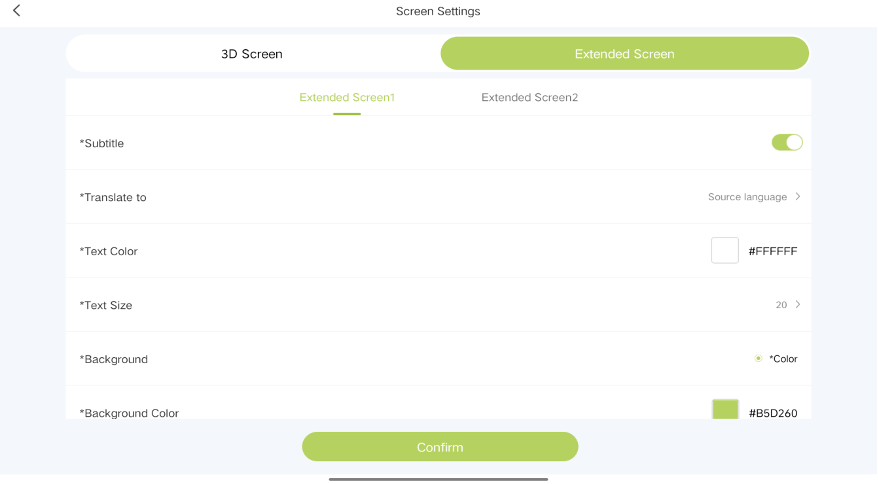
The extended screen is used to display real-time translations. Currently, up to 2 extended screens can be connected. You can set properties such as the text color, size, and background on the tablet.
The settings on the tablet appear as follows:
The resulting text on the extended screen appears as follows: