Updated 2/6/2026
Conference User Manual/HybriU Conference
Starting an Online Meeting(1)
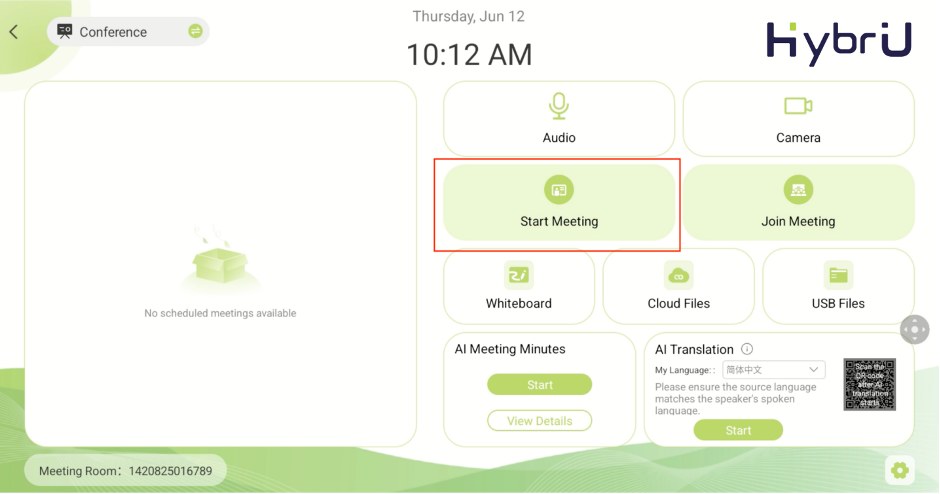
Turn on the Control Tablet and go to the homepage. On the left, you will see a list of scheduled meetings; select the “Start” button next to any title to begin that meeting.
Tip: If you do not see your scheduled meeting on the homepage, try clicking the “View More” button or pull to refresh.
If you have not scheduled a meeting in advance, you can also click "Start Meeting" to create a new one.
Managing Online Meetings(2)
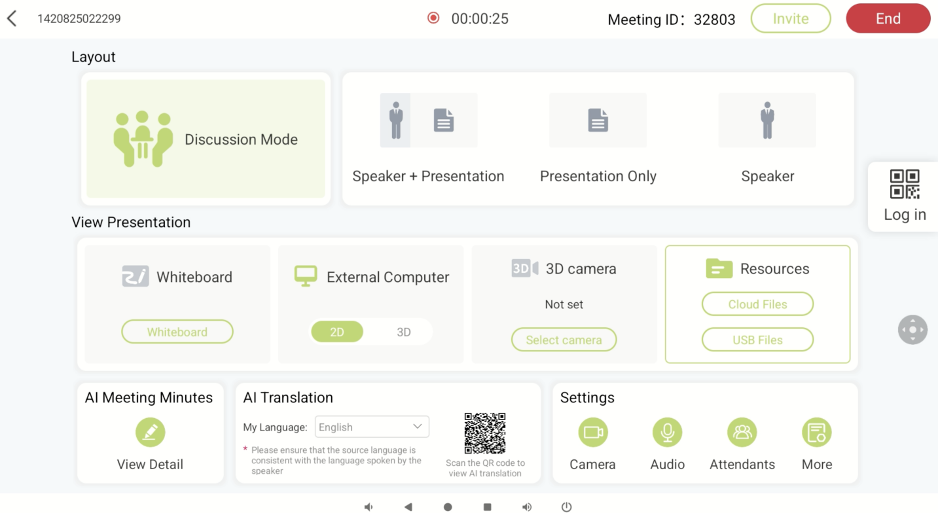
Once you have clicked “Start Meeting” or have entered a online meeting, you will be taken to the meeting control page, as shown below:
Switching Layouts(3)
Layout 1: Speaker + Presentation
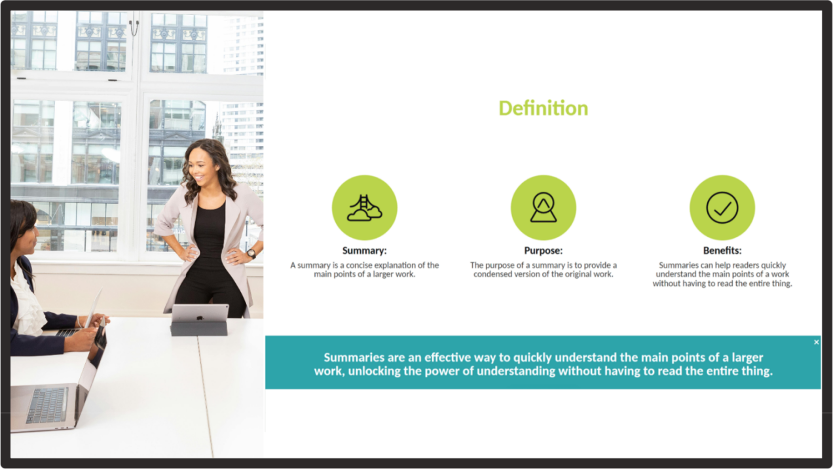
This layout is used in scenarios where the speaker and their presentation content (such as a slideshow, demonstration, or visual) benefit from being displayed at the same time. Online participants will be able to see the lecture and presentation content side-by-side. The effect is as follows:
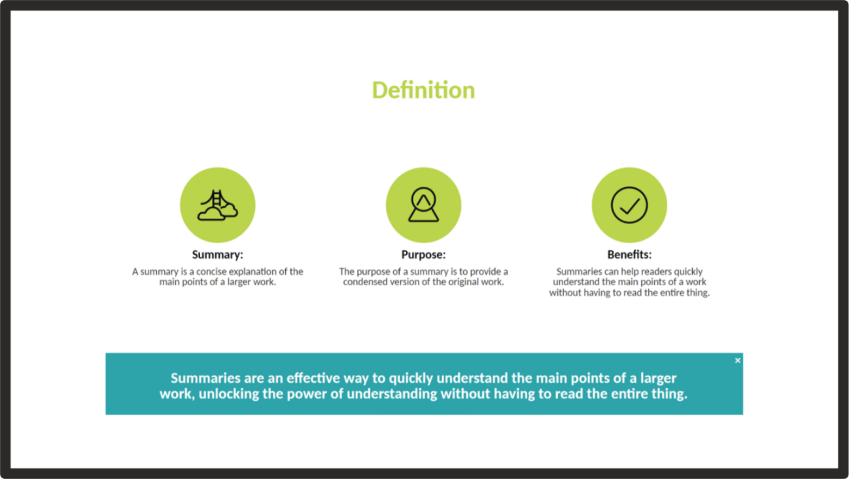
At the speaker’s venue, the screen will only display the presentation content. The effect is as follows:
Layout 2: Presentation Only
This layout is suitable for scenarios where participants only need to see the presentation content, in addition to supporting formats such as the digital whiteboard, external computer screen projections, and 3D camera footage (Note: 3D function is only available to users who have enabled the function’s permissions).
If you would like to use the whiteboard, click "Whiteboard" from the meeting control page at any time. The whiteboard tool supports writing, drawing, and annotating, as well as various file types such as Word, PPT, PDF, images, video, and audio.
If you would like to upload the file directly, click "Resources".
Layout 3: Speaker
This layout is suitable for scenarios where you only need to display the speaker to participants. The effect is as follows:

Layout 4: Discussion Mode
This layout is suitable for facilitating discussions between multiple participants.
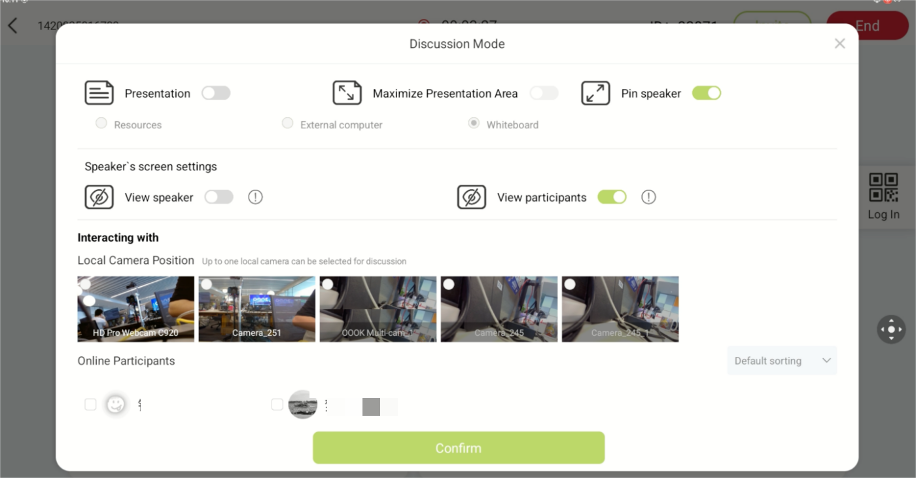
While in Discussion Mode, you can continue to present content by enabling the presentation setting, then selecting your format: an external device, cloud file, or digital whiteboard. You can also set a presentation layout for your participants to adhere to.
If [Maximize Presentation Content] is enabled, all participants will be positioned on the right side of the presentation screen. Otherwise, participants will be distributed on both sides.
If [Pin Presenter] is enabled, the presenter’s screen will take up a larger portion of the display compared to other participants. Otherwise, the presenter and participants will share the same proportions.
You also set the speaker or participants’ video feeds to be displayed on the large screen. Please note that this setting only affects the presenter’s screen, and has no impact on online participants.
During the discussion, camera footage of the speaker (at the main venue) will be displayed together with the selected participants. You can also include footage from a second camera through the multi-camera function; this will allow you to concurrently capture different areas and angles of the main venue.
Discussion Mode also supports audio and video interaction with online participants.
Settings for the above are as follows:
Switching Presentation Content(4)
Resources
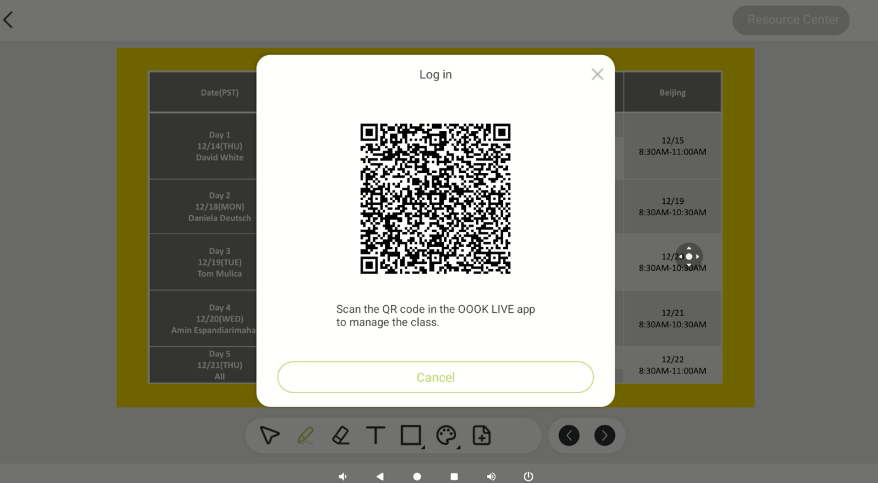
In the Resource Center, you can access both [Cloud Files] and [USB Files]. After clicking [Cloud Files], you will need to use the OOOK LIVE app to scan the QR code and log in. This will allow you to access both the personal resources associated with your account and the corporate files of the company to which your UniBox belongs.
Click [USB Files] to access files stored on the USB drive inserted into the control panel. Please note that selected files will need to be uploaded and parsed before they can be used.
External Computer
If you have connected your computer to the HybriU AI UniBox via an HDMI cable, you will be able to switch the presentation content to "External Computer”. This will directly project your computer’s screen onto the display. You can also switch to “3D Mode” to play 3D content from your computer (Note: 3D function is only available to users who have enabled the function’s permissions).
Whiteboard
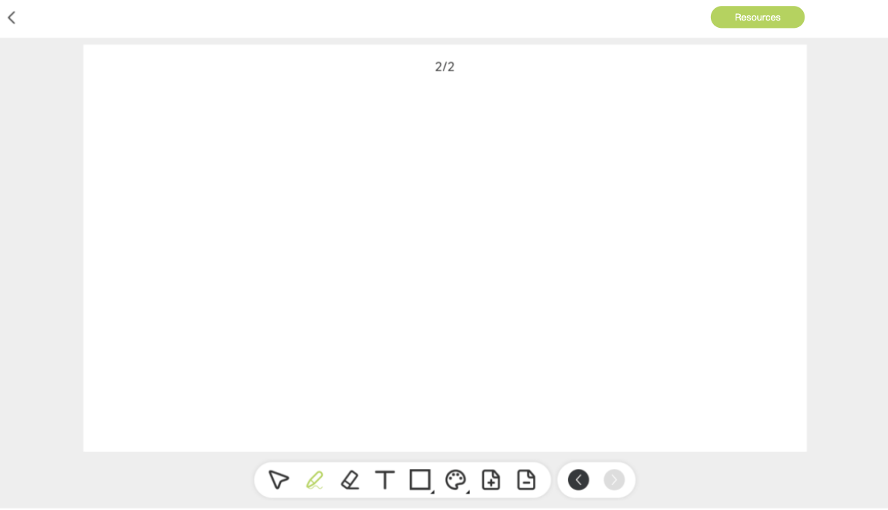
The whiteboard supports writing, drawing, and annotating. You can add, delete, and move through different pages as needed, as well as upload files such as slideshows, PDFs, images, videos, and more.
3D Camera
If you have enabled the 3D function and purchased a 3D camera, you can select the 3D camera for use in the presentation content area.
AI Meeting Minutes(5)
After the meeting starts, the system will automatically start recording real-time subtitle transcription. Click on View Detail to enter the details page and view real-time subtitle transcription. After the meeting is over, you can view the summary generated by AI.
AI Translation(6)
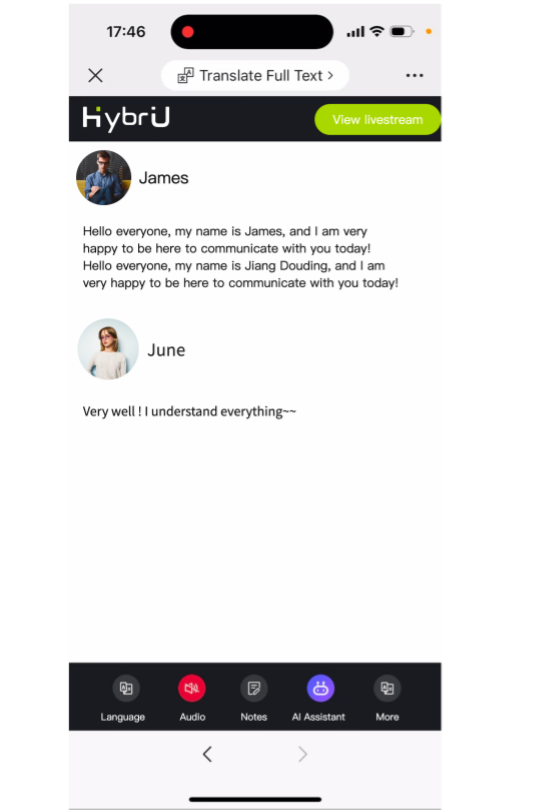
Scan the QR code at the AI Translation to access the AI translation assistant page, where you can watch subtitles and simultaneous interpretation in dozens of languages.
Additional Settings(7)
Cameras
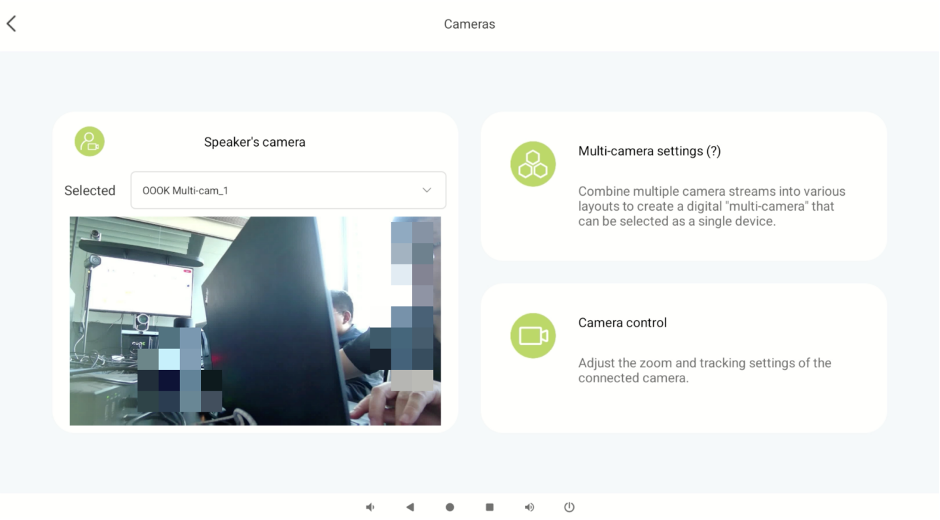
In [Cameras], you can adjust various settings related to the camera, such as [Speaker’s Camera] settings to the left, [Multi-Camera Settings] on the upper right, or [Camera Control] in the lower right.
Speaker`s Camera
“Speaker`s Camera” refers to the camera of the main speaker. You can select any camera that is successfully connected to the AI UniBox as the main speaker’s camera. Alternatively, you can select “Multi-Camera” as the Speaker Camera.
Multi-Camera Settings
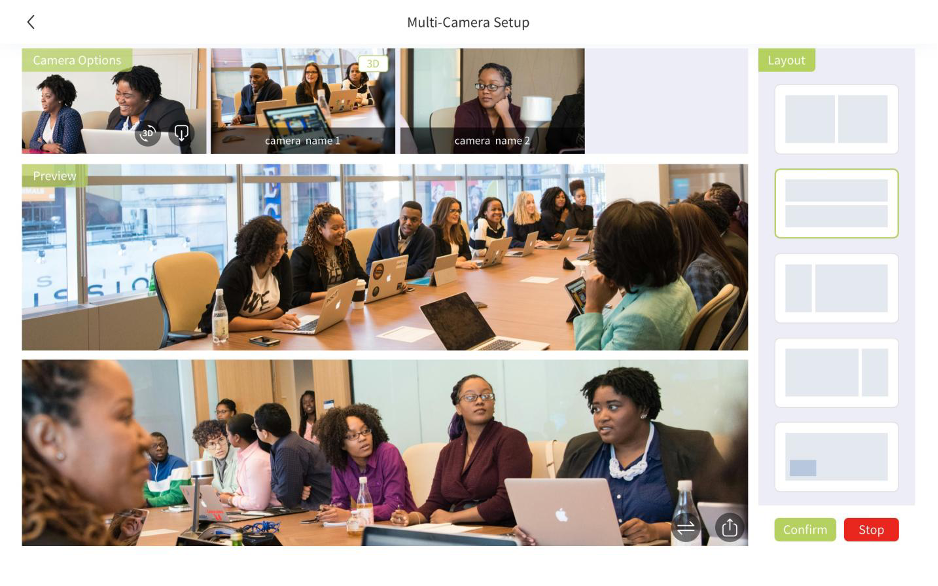
"Multi-Camera Setting" is a special feature of the HybriU Conference. It refers to the function of combining multiple connected cameras into a singular virtual camera, through a certain layout and arrangement. This virtual camera can be selected as the speaker’s camera, or it can be used as the main venue’s secondary camera in Discussion Mode. This function will be introduced later.
Camera Control
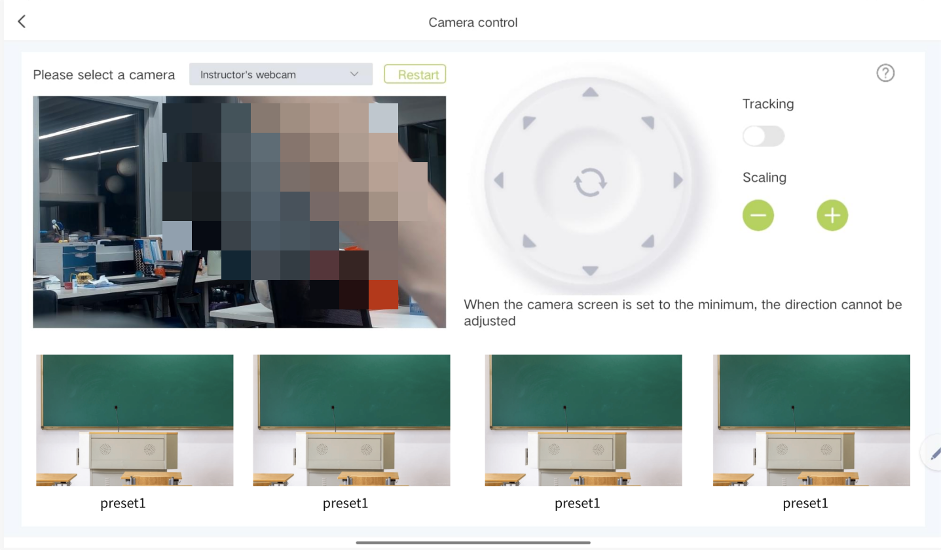
Currently, this function is only available for POE cameras. Cameras by other brands, whether USB or POE-connected, are not supported for the time being.You can customize the zoom and angle of POE cameras. If you are using an HybriU PTZ camera, in addition to the above functions, you will be able to control the PTZ position.
This is shown in the figure below:
A few points to note:
1. You will need to turn off the tracking function before adjusting the camera's angle.
2. If the camera has been fully zoomed out, you will not be able to adjust its angle.
Audio Settings
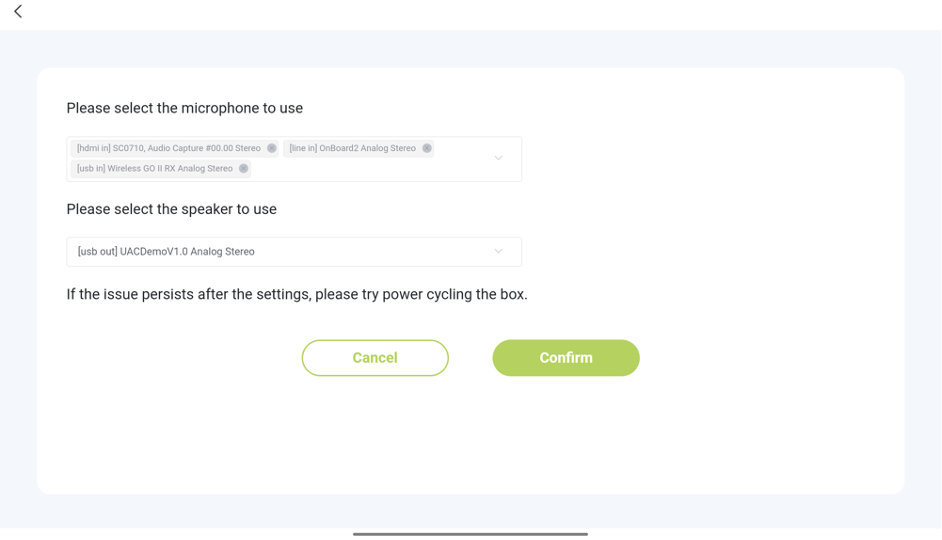
Here, you can select the microphone or speaker you want to use. The microphone setting supports multiple selections.
A few points to note:
1. The default selected speaker is [line out]. If there is a change to the device, it can be modified in the audio settings.
2. The default selected microphone is [line in]. If there is a change to the device, it can be modified in the audio settings.
3. If the microphone name contains [HDMI in], it means the source is the device plugged into the HDMI in port of the box.
4. If the microphone name contains [USB in], it means the source is the microphone plugged into the USB port.
5. If the microphone name contains [line in], it means the source is the microphone plugged into the line in (3.5mm small, round) port.
6. If the speaker name contains [HDMI out], it means the source is the device plugged into the HDMI out port of the box.
7. If the speaker name contains [USB out], it means the source is the speaker plugged into the USB out port.
8. If the speaker name contains [line out], it means the source is the speaker plugged into the line out port.
Participants
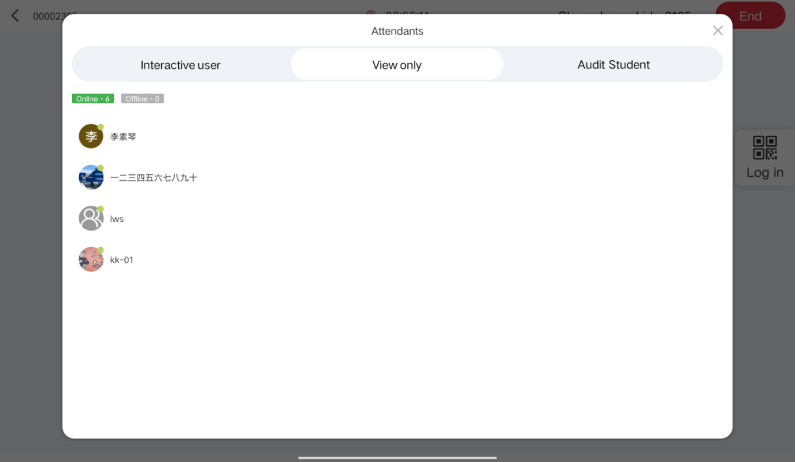
In Discussion Mode, click "Attendants" you can check the attendants in the online meeting.
Equipment Detection
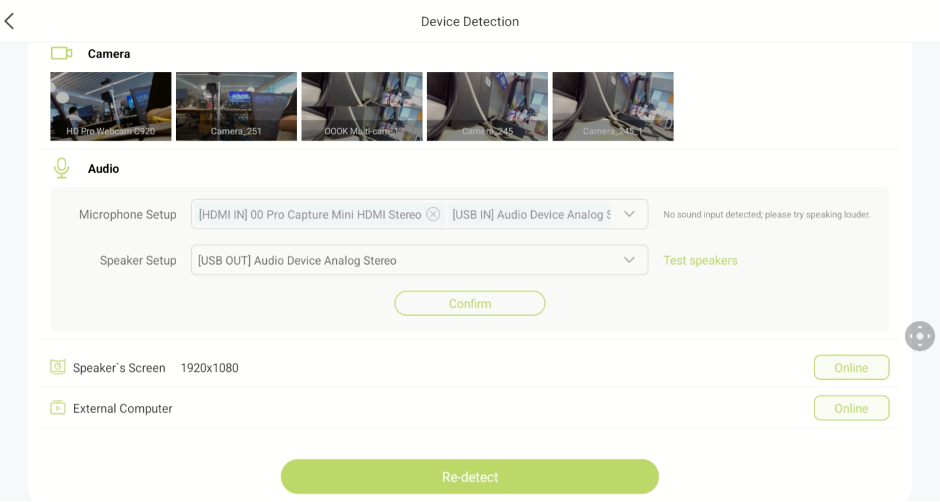
Here, you can check the connection status of various devices such as cameras, microphones, and speakers. You can also verify if the main screen, overhead screens, and external computers are connecting normally. If you are having audio issues, you can select a microphone or speaker and adjust its sound settings. This is shown in the figure below:
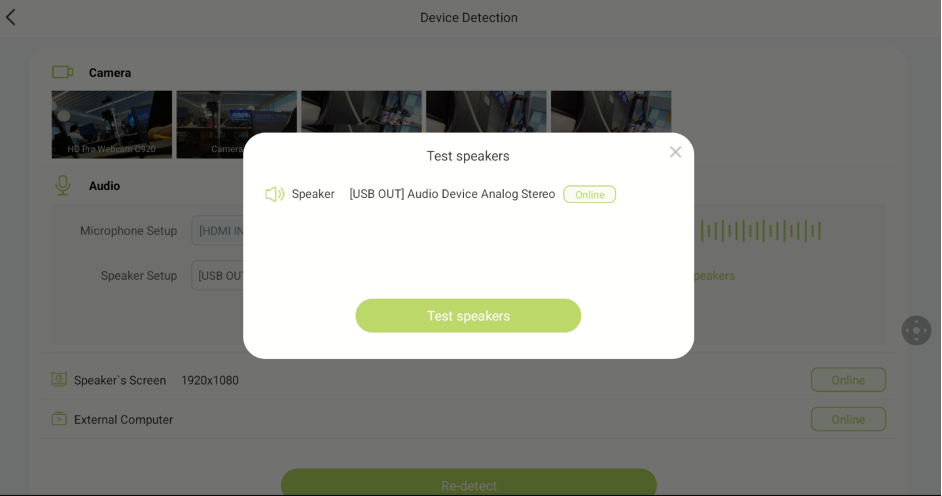
You can test the speaker from the Control Tablet. The speaker will play a test sound; if you can hear it, the speaker is operating normally. If you cannot hear the sound, you will need to check the connection status of the speaker or reset its audio settings.
Screen Settings
Main Screen Settings
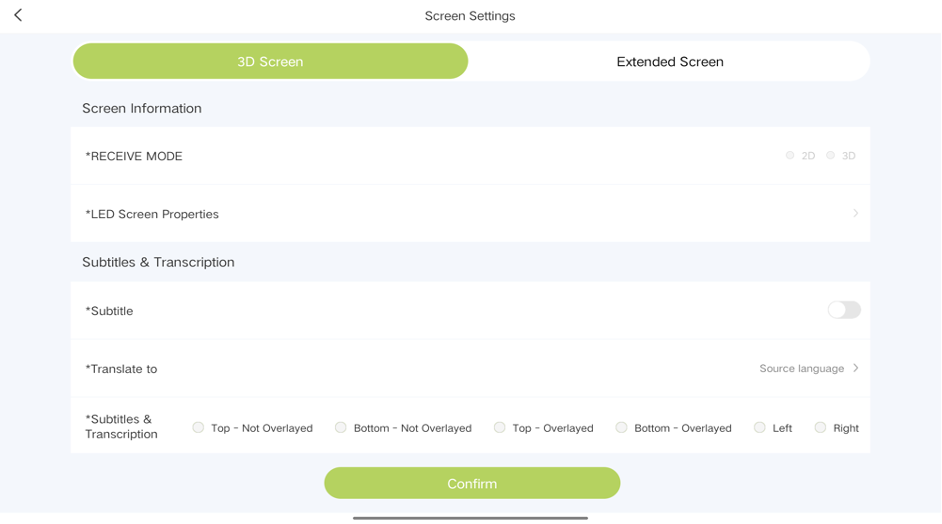
The“main screen”is used to display content such as the whiteboard, computer screen, files from the personal library or enterprise library and subtitles. It can be 2D or 3D.
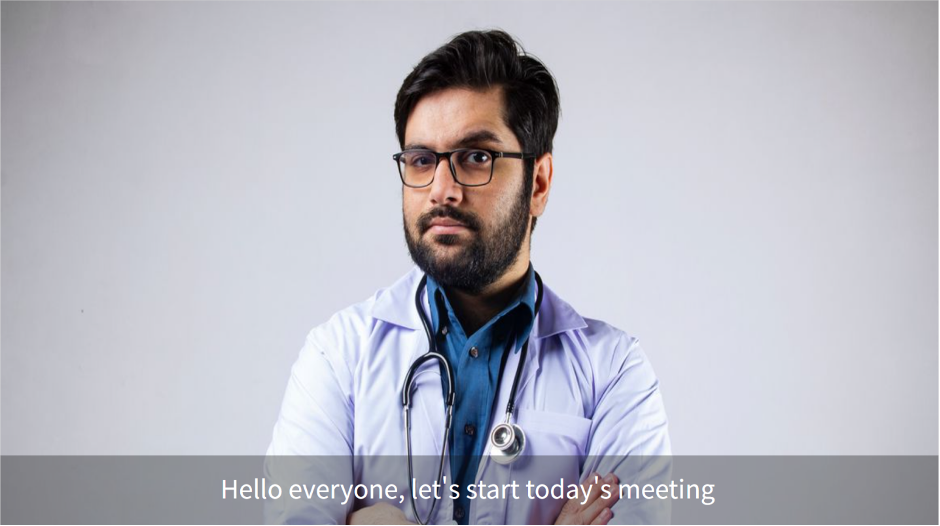
The position, size, color, and background of the subtitles can be customized. It can be 2D or 3D.
These settings are shown in the figure below:
The effect on the screen is as follows:
Secondary Screen Settings
Currently, the tablet only displays some information from the extended screen, and cannot be modified.
Overhead Screen Settings
The "Overhead Screen" can be customized for many different uses, such as helping the speaker engage with online participants, view speaker notes, or quickly access meeting information.
Click "Overhead Screen" to select the type of content presented on the overhead screen display:
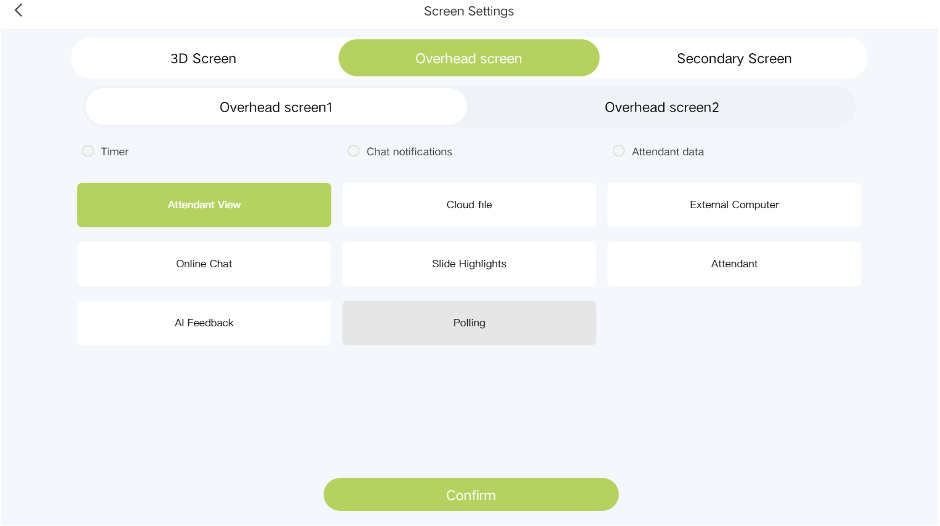
The Overhead Screen has three small, add-on modules: Timer, Chat notifications, and Attendant data, as well as the following large screen functions to choose from:
1. Attendant View: View the meeting and any recorded screens as seen by online participants through the heads-up display.
2. Cloud Files: When the presenter uploads a file, they may also project it onto the heads-up display for easier viewing.
3. External Computer: After connecting an external computer via an HDMI cable, the presenter will be able to view its screen through the heads-up display.
4. Online Chat: Easily view, monitor, and interact with students in the chat.
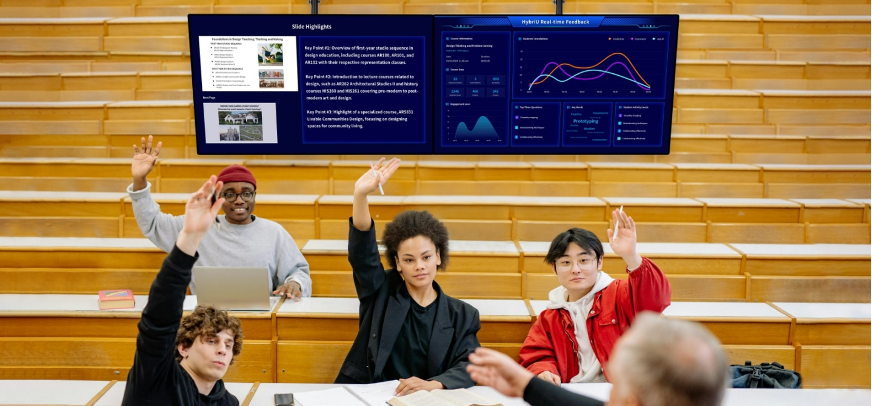
5. Slide Highlights: The presenter can use HybriU AI to generate notes from their documents in advance, and display them as a presentation assistant.
6. Attendant: The videos of online participants can be shown on heads-up displays to better facilitate interactions and help the presenter gauge their status.
7. AI Feedback: AI can collect, summarize, and update data about participants in real time, such as attendance and activity records.
The AI Document Annotation and AI Feedback features are presented as follows:
Extended Screen Settings
The extended screen is used to display real-time translations. Currently, up to 2 extended screens can be connected. You can set properties such as the text color, size, and background on the tablet.
The settings on the tablet appear as follows:
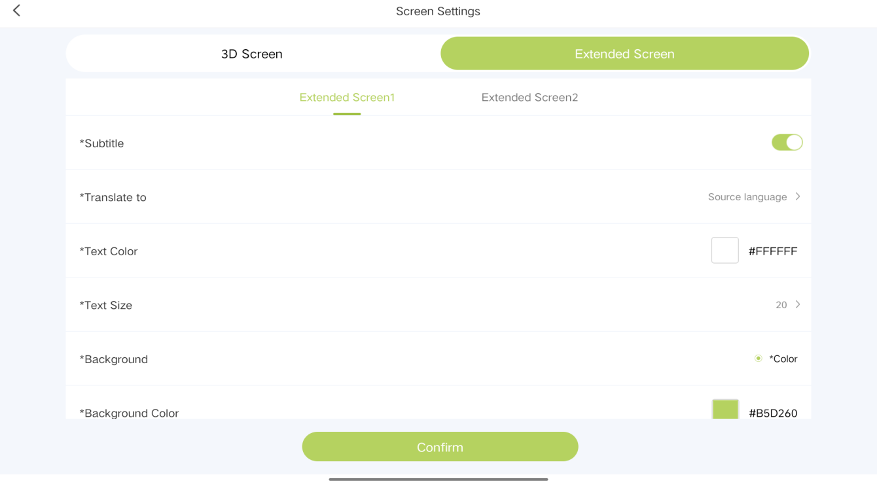
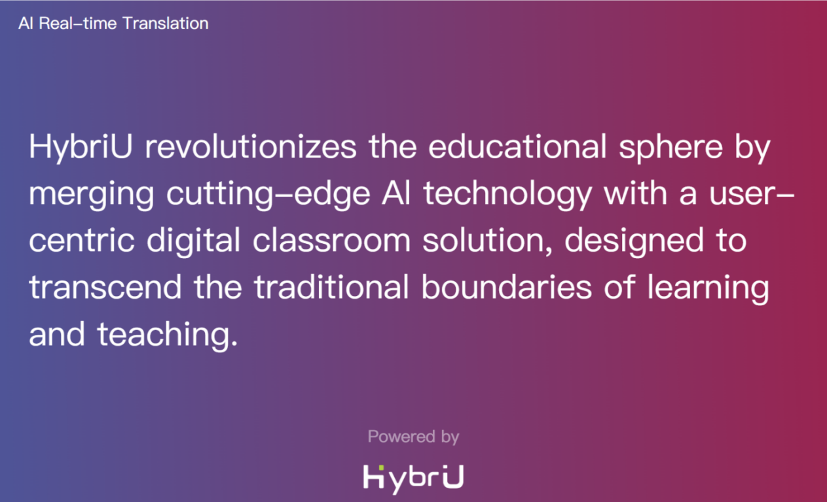
The resulting text on the extended screen appears as follows:
AI Settings
To reduce energy consumption and optimize storage use, our system can automatically end live broadcasts for you after a set time. When this function is turned on, the system will detect voices and other activity in the room. If there is no activity within the time period you have set, the system will display a pop-up reminder and sound an early warning tone. At this time, you can choose to continue the meeting. If there is no response, the system will automatically end the meeting after 5 minutes.
AI Automatic Layout Switching:
After turning this feature on, our AI can assist your live broadcast by adjusting the layout based on the selected mode and the detected on-site scenario. Currently, AI automatic layout switching is only supported in the“ Speaker + Presentation” mode.
Automatically track the current speaker
Easily follow and capture the most relevant footage for your presentation scenario; when the speaker leaves the camera’s tracking area, our AI will automatically switch layouts to display the presentation content only. This can help optimize screen space and promote participant focus.
Automatically identify speaker status
When the speaker is facing away from the camera and writing on a whiteboard, our AI will detect the speaker’s new position and switch the layout to a full-size view to better capture what they are writing. When this feature is turned off, the layout will not switch automatically.
More Settings
Click “More Settings” to view additional features such as, automatic language detection, application settings, and more.